viflow logoknowledge base

Contact Us

Menu
en de
  • viflow product page
  • Support request

Contact Us

  • viflow knowledge base
  • viflow 8 – help
  • Reports and Outputs
  • Save customized reports as a profile
Reports and Outputs

Save customized reports as a profile

Applies to: viflow 8 | Article: 1593195 | Updated on 04.12.2025

{{gold}}This function is available in the viflow gold edition (not in viflow blue and silver).{{end}}

If you need a report – eg the process description – for different use cases with different content, you can save the customized report as your own profile. In this way, the changes do not have to be manually adjusted each time they are used.

  1. Open the Reports window by clicking Windows – Reports on the View tab.
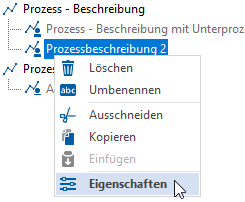
  2. Right-click [ ] on the report to be edited and select Properties from the context menu.
  3. On the Profiles tab, click the Add button [  ].
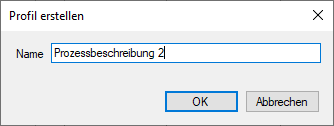
  4. Enter the profile name in the Create profile window and confirm with OK.
    The profile with all the properties of the original report is saved and appears in the Profiles tab.
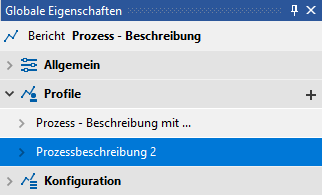
  5. Now customize the contents of the profile (as described in How to customize the contents of reports above) by clicking on the new profile to open the tab.
    Alternatively, you can customize the profile by going to the profile properties in the Reports window and customizing the content on the Configuration tab (as described above).

Open custom reports

If you have saved customized reports as profiles, they appear for selection when you open the report on which the profiles are based.

  • You can open the reports or profiles directly from the context menu [ ] of the objects in the corresponding windows. To do this, right-click on the object and select the Reports entry.
  • Of course, the reports/profiles can also be accessed via the viflow Reports tab.

Include reports in the WebModel

It is possible to integrate important reports, such as the process description, into the WebModel and call them up directly from there.

Delete

The following reports can be integrated into the WebModel and accessed from there:

  • Process description / process description with sub-processes
  • Participants / All participants
  • KPIs
  • Turtle Model
  • Structure
  1. Open the Reports window by clicking Windows – Reports on the View tab.
  2. Right-click [ ] to the report that is to be included in the WebModel and select Properties from the context menu.
  3. On the General tab, click in the Include in WebModel field and select Yes.
    The report is saved in the WebModel after the next export and can be called up there in the Reports tab.

All articles in Reports and Outputs

  • Save customized reports as a profile
Quicklinks
  • viflow international
  • viflow functions
  • Trainings
  • viflow life cycle
  • viflow system requirements
  • Remote support
  • viflow updates
SUBMIT SUPPORT REQUEST

Couldn't find a solution? Make a support request.

Submit a support request


FOLLOW US

We inform you regularly about current developments, trends and news around viflow. Just choose the format that's right for you.

Newsletter subscription
vilfow auf facebook ViCon auf Xing ViCon auf Linkedin vilfow auf youtube
Contact Central office

+49 511 123125–0

Sales

+49 511 123125–120

Support support@viflow.de
  • Contact
  • T&Cs
  • Conditions of Use
  • Privacy Statement
  • Legal Info

Copyright © 2003 – 2025 ViCon GmbH | viflow knowledge base | All rights reserved.

info@vicon.biz +49 511 123125–0
Knowledge Base Software powered by Helpjuice

Definition by Author

0
0
  • Kontakt
  • AGB
  • Nutzungsbedingungen
  • Datenschutz
  • Impressum

Copyright © 2003 – 2021 ViCon GmbH | Funktionen | Alle Rechte vorbehalten.

info@vicon.biz +49 511 123125–0
Expand